In this tutorial, we are going to add a new button to the Pause Menu and expand its size.
Contents
1. Expanding the size of the Menu
First, we will have to expand the pause menu in order to add the new option. Edit the following data in src/engine/menus/gift_center.asm:
 PauseMenuParams:
 	db 12,  0 ; start menu coords
-	db  8, 14 ; start menu text box dimensions
+	db  8, 16 ; start menu text box dimensions

 	db 14, 2 ; text alignment for InitTextPrinting
 	tx PauseMenuOptionsText
 	db $ff

 	db 13, 2 ; cursor x, cursor y
 	db 2 ; y displacement between items
-	db 6 ; number of items
+	db 7 ; number of items
Here, we are changing the dimensions of the pop-up menu from 8x14 tiles to 8x16 tiles and expanding the number of places that the cursor will cycle through.
2. Adding the New Option
Now that we have expanded the menu, we can add a new option to it. For this tutorial, we will add the "Read Mail" option from the PC. Edit the following line of code in src/engine/overworld/overworld.asm:
 PauseMenu:
 	...
 	ldh a, [hCurMenuItem]
 	cp e
 	jr nz, .exit
-	cp $5
+	cp $6
 	jr z, .exit
	call Func_c2a3
	ld a, [wSelectedPauseMenuItem]
The first thing we must do is modify this small part in the PauseMenu function, which determines which item in the list is the "Exit" option. Since the numbering begins at $0 (with "Status") and there were originally 6 options, "Exit" was in position "$5". Now that there are 6 options, "Exit" has moved to position "$6". Now, let's move on to modify something further down in the same file.
 PauseMenuPointerTable:
 	dw PauseMenu_Status
 	dw PauseMenu_Diary
 	dw PauseMenu_Deck
 	dw PauseMenu_Card
+	dw PauseMenu_ReadMail
 	dw PauseMenu_Config
 	dw PauseMenu_Exit
In this table, you will find functions for each of the options that are available in the Pause Menu. Add another entry for your new option, and place it wherever you want that option to appear in the list. In this example, we'll make it the fifth option, between the functions for the card collection and the configuration settings. We'll also need to define our new function below.
+PauseMenu_ReadMail:
+	xor a
+	ldh [hSCX], a
+	ldh [hSCY], a
+	call Set_OBJ_8x16
+	farcall SetDefaultPalettes
+	farcall PCMenu_ReadMail
+	jp Set_OBJ_8x8
3. The final changes
Now that we finished all of the engine work, the only thing left is to edit the text that lists all of the Pause Menu items, so open src/text/text3.asm and locate PauseMenuOptionsText.
 PauseMenuOptionsText:
 	text "Status"
 	line "Diary"
 	line "Deck"
 	line "Card"
+	line "Read Mail"
 	line "Config"
 	line "Exit"
 	done
We just need to add another line to the text, inserting whatever name would best describe the new menu option (up to 10 characters). Keep in mind that the order shown here has to match the order that was used in PauseMenuPointerTable during the previous step. Also, if this modification resulted in a "bank overflow" for the Text3 bank, you should try deleting the ds $57 at the bottom of the file. You might also want to reference the "Add new text" tutorial.
The final result should look something like this:
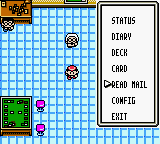
As you can see, the pause menu is larger, and the new option can be used from the start of the game.