If you're working on a translation or if you decided to expand some aspect of the game (especially if you enabled lowercase font characters), then you're likely to notice some text display glitches. These glitches are caused by the way the game handles font graphics. At any given time, a certain range of tiles is set aside in vram to be used for storing any generated font tiles; however, if the number of unique font tiles that are needed is greater than what will fit in this range, then the game begins overwriting some of the earlier tiles. You can actually witness this overflow causing text display issues within the original game if you continue to type different keys on the deck naming keyboard. This is a common example of the glitch, where there is more than enough space in vram for all of the font tiles to be displayed on the screen, but repeated screen updates from user input end up overwriting some of the static text. Here are few screenshots highlighting this problem on the deck naming screen, the card collection screen, and the card album screen. The latter two will only be seen after considerable scrolling and most likely only if the number of cards in one of the relevant filters (card type/set) is increased.
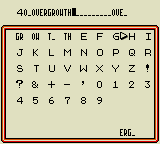
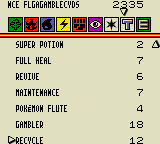
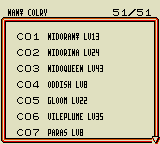
And here are a few more examples from the Dutch translation of the text overflowing on the title screen menu and during the introductory practice duel.
Don't mind the modifications to some of the characters in the halfwidth font lol
This tutorial will show you how to fix most of the above examples, and you should be able to use similar strategies to fix anything else that pops up.
Contents
1. Redraw Static Text After Player Input
The best way to solve a lot of the overflow issues that occur after frequent screen updates (most often from scrolling through lists) is to reprint any text that is ignored whenever the rest of the screen is updated.
The simplest implementation of this concept can be achieved by reprinting "*'s Cards" in the top left corner of the card collection screen (accessed by selecting "CARD" on the pause menu) each time the player uses the directional buttons to move through the card lists. Since printing that header text is handled by a separate function, we just need to call that function each time the card list is updated, so open src/engine/menus/deck_configuration.asm and add the following line to PrintCardSelectionList.
PrintCardSelectionList:
	push bc
+	call PrintPlayersCardsText
	ld hl, wCardListCoords
	ld e, [hl]
	inc hl
For the next example, we'll try to do something similar for the booster pack name that gets printed at the top of the screen when viewing a set within the card album. This time, there isn't an existing function to reference, so we'll have to figure out another way to print the name of the booster pack. First, let's find the function that handles updating the rest of the screen when the player scrolls through a card set, so open src/engine/menus/card_album.asm and scroll down to PrintCardSetListEntries. We'll need to create a table with all of the card set labels and then use the ID stored in wSelectedCardSet to find the appropriate text to print in the top left corner of the screen.
+BoosterNamesTextIDTable::
+	tx Item1ColosseumText        ; CARD_SET_COLOSSEUM
+	tx Item2EvolutionText        ; CARD_SET_EVOLUTION
+	tx Item3MysteryText          ; CARD_SET_MYSTERY
+	tx Item4LaboratoryText       ; CARD_SET_LABORATORY
+	tx Item5PromotionalCardText  ; CARD_SET_PROMOTIONAL

 ; prints the cards being shown in the Card Album screen
 ; for the corresponding Card Set
 PrintCardSetListEntries:
	push bc
+	ld a, [wSelectedCardSet]
+	add a
+	ld e, a
+	ld d, $0
+	ld hl, BoosterNamesTextIDTable
+	add hl, de
+	ld a, [hli]
+	ld h, [hl]
+	ld l, a
+	lb de, 1, 1
+	call InitTextPrinting_ProcessTextFromID
	ld hl, wCardListCoords
	ld e, [hl]
	inc hl
2. Increase Font Tile Limit
Another way to solve the text overflow glitch is to increase the number of text tiles that can be stored in vram. This is often the simplest solution, but it's only viable if there are extra tiles in vram that aren't currently being used on that screen. The SetupText function is used to adjust the font tile range in vram, so applying this fix will involve either finding when it is initially called and then adjusting that range or else by inserting a secondary call to create a larger range for a single screen and then resetting it afterwards.
For the first example, we'll use the menu that's displayed after pressing START on the title screen. If you end up editing any of the descriptions that are displayed in the lower box, then you might notice that the labels in the upper box are subject to being overwritten if the player cycles through each of the options. Because the number of options in this menu is variable, it would be somewhat challenging to reprint the labels each time the player selects a new option. Fortunately, the number of available font tiles on this screen can be significantly expanded without it affecting any of the other graphics, and it doesn't even need to be reset afterwards because that will be handled once any of the options are selected and the next screen is drawn. Just open src/engine/menus/start.asm and edit the line immediately above call SetupText in HandleStartMenu, changing the $8f to $cf. If you're wondering why we don't increase the range even further, that's because the player icon graphics start at $d0.
 HandleStartMenu:
	ld a, MUSIC_PC_MAIN_MENU
	call PlaySong
	call DisableLCD
	farcall InitMenuScreen
-	lb de, $30, $8f
+	lb de, $30, $cf
	call SetupText
	call EnableAndClearSpriteAnimations
	xor a ; DOUBLE_SPACED
	ld [wLineSeparation], a
	call .DrawPlayerPortrait
This small change will add another 64 font tiles to vram. That should be more than enough to cover any rewrites to the start menu descriptions. Here's another screenshot from the Dutch translation after this edit was made. Now, the labels have remain unchanged, even after cycling through each of the menu options.
For the second example, we'll try to address any text overflow that might occur during the practice duel. This won't be as simple as the previous example because there are multiple screens that are subject to the glitch. We'll also need to reset the font tile limit after any of the adjusted screens is cleared. Thankfully, all of the relevant code can at least be found in one file, src/engine/duel/core.asm. First, we'll increase the limit on the screen where Dr. Mason's messages are displayed in a text box below a list of the cards in the player's hand. We'll make the new range $38-$cf, to preserve both the text symbols ($00-$37) and the 16x16 type icons that are displayed next to each of the card names ($d0-$ff). Now, add the following 2 lines to DisplayPracticeDuelPlayerHandScreen.
 DisplayPracticeDuelPlayerHandScreen:
	call CreateHandCardList
	call EmptyScreen
+	lb de, $38, $cf
+	call SetupText
	call LoadDuelCardSymbolTiles
	lb de, 0, 0
	lb bc, 20, 13
Next, we'll need to reset the font tile limit to the default that's used during duels ($38-$9f) in order to avoid having any text tiles overwrite the card sprite graphics in the bottom right corner of the player's hand card list screen. That can be accomplished by adding the following lines to the DrawCardListScreenLayout function. It actually makes sense for these lines to be there regardless.
 DrawCardListScreenLayout:
	call ZeroObjectPositionsAndToggleOAMCopy
	call EmptyScreen
+	lb de, $38, $9f
+	call SetupText
	call LoadSymbolsFont
	call LoadDuelCardSymbolTiles
	; draw the surrounding box
It's also a good idea to increase the font tile limit on the screen where Dr. Mason lists the step by step instructions for each turn of the practice duel. There aren't any other important graphics on this screen, so we might as well set the end of the range to $ff. Add the following 2 lines to DrawPracticeDuelInstructionsTextBox.
 DrawPracticeDuelInstructionsTextBox:
	call EmptyScreen
+	lb de, $38, $ff
+	call SetupText
	lb de, 0, 0
	lb bc, 20, 12
	call DrawRegularTextBox
 ;	fallthrough
Again, we'll need to reset the font tile limit to the default that's used during duels ($38-$9f). The easiest way to accomplish this is by making the following changes to PrintPracticeDuelLetsPlayTheGame, the function that prints the final message that's always shown at the end of the instructions screen.
 PrintPracticeDuelLetsPlayTheGame:
	ldtx hl, LetsPlayTheGamePracticeDuelText
	call PrintPracticeDuelDrMasonInstructions
-	ret
+	lb de, $38, $9f
+	jp SetupText
Here are a few more updated screenshots from the Dutch translation that were taken after applying the previous changes. As you can see, all of the overflow issues have been fixed.